Ideas, thoughts, and information from the Instructional Technology Division of the Winston-Salem/Forsyth County School System
Wednesday, December 31, 2008
WSFCS Wiki

Friday, December 19, 2008
Convert PowerPoint Presentations to Movie Maker Movies

Thursday, December 18, 2008
Doodle: Easy Scheduling
Wednesday, December 17, 2008
What Makes A Technology Rich Curriculum?
But, technology rich curricula don’t begin nor end with just stuff. Add to that ever-growing and very long list tons of resources... web-based applications, widgets, wikis, blogs, traditional software, online learning communities (i.e. Moodle), global communities, online educational games, social bookmarking, virtual (educational) worlds, podcasts, vodcasts/vidcasts, video conferencing, Google Docs, SharePoint sites, digital storytelling, screencasts, vlogs… the list just keeps going and growing and going and growing.
So, how do you pull it all together? How do you incorporate the “stuff” with the resources? Simple. Think outside the box (textbook, worksheets, pen and paper). Instead, add to those common items imagination, creative planning and a lot of forethought.
What is the goal in producing a technology rich curriculum? A learning yet interactive experience in which your students gain core knowledge, insight, new perspectives and new technological skills.
Go ahead, think outside the box. Your students will appreciate it.
Monday, December 15, 2008
Setting Objectives
Research says goal setting ...How do we ensure the participation and buy in of all stakeholders in clearly identifying goals and objectives? How do we ensure the success of all stakeholders?
Word processing features allow us to create unit plans students can use to focus on lesson goals as well as overarching competencies. Students can create KWL charts to track their progress as they bring background knowledge to a new topic, identify what they need to investigate and evaluate what they have learned. Contracts and rubrics are easily created to communicate expectations using word processing or online tools.
Graphic organizers can add flexibility to goal setting and provide a more appropriate format for visual learners. Students might make choices within specified parameters and/or use images to communicate. Organizers also provide structure for tracking progress and setting timelines to meet each expectation and master each concept. Technology based plans can easily be modified as the focus flexes to include more/less detail or adjust for individual needs/interests.
Surveys and spreadsheets provide data collection components that can provide the information we need to personalize objectives making them more meaningful. Online surveys that include open-ended items are a wonderful way to access students' background knowledge and interests. Lessons can then be modified to address needs, clarify misconceptions and construct engaging activities.
Blogs are another tool for maintaining focus and tracking progress. Each person can contribute their views, challenges and successes as the class strives to reach a goal. Blending perspectives helps everyone develop a broader vision and deeper understanding of the topic.
Based on content found in: Classroom Instruction That Works: Research-Based Strategies for Increasing Student Achievement written by Robert Marzano, Debra Pickering, and Jane Pollock Using Technology with Classroom Instruction that Works written by Howard Pilter, Elizabeth R. Hubbell, Matt Kuhn and Kim Malenoski
Digital Learning Suite: Thinkfinity
Desktop Widgets
A desktop Widget is a stand-alone, task-oriented application with a web browser running the applications. The purpose of the desktop Widget is to provide services to the user with the user choosing what to place in the Widget.
There are quite a few Widgets to choose from:
· Dashboard Widgets from Apple Macintosh
· Microsoft Gadgets in Windows Vista and in Windows Live system
· gDesklets, Adesklets, and Screenlets for Linux systems
· Google Web Toolkit
· Yahoo! Widgets
· Klips in Klipfolio
· Opera Widgets - will need to download the Opera Browser
· Mobile widgets such as webwag, Zumobi, Mywidz, Plusmo, Widsets
· Adobe AIR
There are other types of widgets which can easily be found by searching on the Internet but which Widget is right for you? Basically Widgets are small bundles of software that let users choose graphics and information that sits on the desktop of the computer or a mobile phone. This is a partial list of the Widget sites you will find.
I downloaded the Yahoo Widgets and added a few widgets. I chose iTunes Remote, Nu Jongg and Calvin & Hobbs Fetcher. When I selected the iTunes Remote icon it opened iTunes on my computer and the Mini Player appeared because that was the last setting I had for iTunes. Without the Mini Player previously selected iTunes Remote will open the iTunes program on your computer. From the main iTunes program you can select a particular CD or make certain settings and then minimize the iTunes program and use the iTunes Remote icon. From the graphic below the iTunes Remote icon is on the left and the Mini Player icon is on the right. One difference I found between the two is the ability to open the program from the Mini Player to choose CDs and/or settings which cannot be done with the iTunes Remote.
The Yahoo Widget can sit on the desktop with all icons showing or collapsed down to one Widget and there is an option to hide the Widget. When the Widget is hidden one can easily scroll over the edge of the hidden Widget and it will appear again to easily select an item. Once an item is selected the Widget will again be hidden. I find that to be a nice feature. That way the Widget isn’t covering up any other icons on the desktop. Another feature I found nice was the ability to shade the desktop for better viewing of a particular Widget. 

Collapsed Widget on the left with one icon showing
View of an opened Widget on the right
I know that I have only scratched the surface for all the uses and capabilities of Widgets so to help in your research of widgets I have hyperlinked the Widgets listed above.
Friday, December 12, 2008
Kid-safe browser - KidZui
Internet Safety: A Different Approach
video retrieved from youtube
Thursday, December 11, 2008
Can Wii Come into the Classroom?
Wii. Wii. Wii. Quite the buzzword these days. But, what exactly is the “Wii” and how can we utilize it for learning? Both are very important questions and imagination has lead the way in providing the answers. According to the official Nintendo site, the Wii is a social gaming experience. That is a pretty high level description when you compare it to “regular” old school games like Frogger, Pac Man and anything Atari provided in the 80’s!Tuesday, December 9, 2008
Using Google Earth Trips in the Classroom

Tech-Literacy with NCLB
Wouldn't you like to know where your students stand prior to the test so that you can work with them to help them succeed?
Well there is now a way to do this. InfoSource launched at NECC 2008 a website that helps you to assess your students knowledge of their tech-literacy. Simple Assessment is the name of the site.
It offers users a free online technology assessment to all K-12 students to determine their technology proficiency. The site assessments are based off of the ISTE NETS standards for students. All data is stored for your easy retrieval afterwards, as well as to retrieve historical data from previous students. The system is all web-based so there is nothing to load on the computer or on your server at the school.
Simple Assessment does want you to follow some guidelines when working with this software. Rules you say, not something else that we have to deal with. Well relax, I will give you these rules as follows.
1.) The free SimpleAssessment is good for one year from implementation date.
2.) The free SimpleAssessment comes with online training and support video tutorials, as well as scheduled Webinars. No individual telephone support is available.
3.) 25% of students in an organization's free SimpleAssessment site must have completed one assessment within 120 days of system implementation or the site will shut down.
4.) To help manage your school's bandwidth, you may assess 20% of your imported students at any one time (not to exceed 500 students at any one time).
Give it a try and go to the website to see if it will help the tech-literacy of your students.
Shifting Expectations

Monday, December 8, 2008
Disabilities, Opportunities, Internetworking, and Technology (DO-IT)
Finding resources for students with disabilities is not always easy. One great resource is the DO-IT website.
According to their website "The Project DO-IT (Disabilities, Opportunities, Internetworking, and Technology) provides a website that serves as a portal which links to many valuable resources for students, teachers, parents and administrators. This portal provides links and information about the use of computer and networking technologies and how they may be utilized to assist in increasing the independence and productivity of individuals. In addition, Project DO-IT strives to assisst individuals with disabilities to pursue academic and career opportunities." (the above description can be found on their website along with additional resources for students with disabilities.)
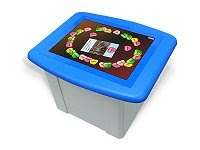
SMART Table Interactive Learning Center
Coming Soon – The Smart Table Interactive Learning Center
The table is designed for students pre-school thru sixth grade. Students can create, explore and have collaborative hands-on activities. The table is a multiuser, multitouch table that enables small group learning and collaboration. Students can move from whole class interactive activities on the whiteboard to small group activities at the table. Up to six students can touch the screen at the same time and the activities are designed to encourage collaboration. Students can select or move objects, draw and/or write on the screen simultaneously. The SMART Table uses Digital Vision Touch technology which enables the multiuser and multitouch capabilities.
Teachers can choose from a wide-variety of ready-made lesson activities or they can customize the activities to suit their lessons. Educators who are interested in developing multimedia content for the SMART Table can become a non-commercial member with free access to SMART development tools to create content for the SMART Board products. Free Membership
The table contains a customized PC and projection system that is turned on with a single button. There is a built in 27” screen that can read simultaneous input from an unlimited number of fingers or pen tools. The table measures 29” wide and 25” high and comes with a standard set of interactive learning applications, interactive lesson activities and educational games. The table will also support the SMART Notebook software through the SMART Table toolkit that runs on the teacher’s computer. Through the toolkit teachers can create and/or customize lesson activities and then load the content to the table using a USB key.
Some of the features:
Audio Support
Object scaling support and object rotation support
Wide range of images and backgrounds to make activities more engaging
Precise touch control
No calibration – ready to use out of the box
SMART Table video on TeacherTube
The table will be available in spring 2009 (sometime January – March). The table cost $8,000 and will be available to order in December 2008. To learn more about the SMART Table go to the SMART website – SMART Table.
Information and pictures taken from the SMART Table website.
Thursday, December 4, 2008
If We Can, Should We?
We, as educators, should try not to fall under the spell of using this new technology just because it is there; but to find the educational benefits of wikis. One way would be to encourage students to compare this source of information with other sources. Check, re-check, trust but verify.
These new tools allow everyone to have input on any and all subjects. They show advantages in keeping users up-to-date and the “first to know.” As students complete school projects through the use of blogs, podcasts, and wikis, they use skills such as doing research, writing and editing, and collaborating with others.
Sometimes there seems to be a fine line on knowing when to use these technologies, when to reject them, and which one fits the appropriate situation. Hopefully we can guide students to make informed decisions so they will know when it is appropriate to use the technologies.
Use the Chalk!

What can you do right away on hotchalk… check out the section on digital content. Here is an awesome example of an interactive video… “Math Matters: Off-Road Algebra”... It shows students how mathematics is involved in everyday life. This is simply one of MANY videos your students can watch and learn from. Be sure to set up your free account to access the available resources. Use the chalk! Your students will enjoy it.
If a tree falls in a forest and no one is around to hear it, does it make a sound?
If you post to a blog and no one comments does it make a sound? In an effort to get more feedback on our blog entries I am offering a special limited time offer. If you post an appropriate comment on the wsfcsintouch blog, Brian will come out to your house and wash your car*.Perhaps I should reflect on the subjects of my posts. Maybe no one is fired up by printing or programming, but there has to be some post that will provoke you (dear reader) into a thoughtful comment. C'mon let's post some comments and put Brian to work.
Photo courtesy of http://www.flickr.com/photos/gordon_mckinlay/2443072362/
* Brian will be under no obligation legal or otherwise to come to your house to wash your car. This was a trick.
Wednesday, December 3, 2008
Cooperative Learning
Cooperative learning is not a new concept but it is often used ineffectively. Putting students in groups does not assure cooperation or learning. Groups must be defined and governed to promote positive interdependence and interaction as well as individual and collective accountability. Interpersonal, small group and group processing skills are also critical. Effective groups take time to establish. Structure and clear guidelines are fundamental elements of successful learning groups. Multimedia presentations are a wonderful way to communicate group findings. Teachers should guide the process by assigning clear roles for creating and sharing productions. Tools include the traditional products such as Word and PowerPoint but it is time to consider other options. Podcasts, webquests and online collaboration can increase the options for learning and sharing. Shared bookmark sites and online communities can facilitate collaboration and expand group resources. Let's harness the power of the web to support and promote collaborative success.
What new approaches will help your students be productive group members? Join us in an exploration of 21st Century tools that can promote cooperative learning skills that will help our students excel in a global community.
Let's rethink the possibilities.
Tuesday, December 2, 2008
Exploratorium: The Museum of Science, Art & Human Perception
The view was spectacular for sure, but if you missed it, you may view it at any time from the view of your own computer via a webcast provided on Exploratorium Online.
Increasing Reading & Writing Skills Dramatically Using A Free 3 Dimensional Learning Environment!

The program I am referring to is Quest Atlantis. The students walk in a 3 dimensional world by moving their avatars with the arrow keys on the keyboard. They complete quests and missions to help the people of Atlantis solve the moral, social and environmental issues they face on their planet. Quest Atlantis also teaches the students to be aware of the issues around them here on Earth and to become responsible first-rate individuals.
There are over 500 quests teachers can choose from. The subjects include Science, Language Arts, History, Math, Art, Music, Foreign Language, Behavioral Studies, Geography, Health, Civics, Economics, Social Studies, Life Skills, Technology, Visual Arts, Media, New Media Literacies, and Physical Education. Teachers could also choose to assign quests by Social Commitments. These include Compassionate Wisdom, Creative Expression, Diversity Affirmation, Environmental Awareness, Healthy Communities, Personal Agency and Social Responsibility.
This type of learning brings the classroom to their world. It is a way of learning that they absolutely love. The key phrase here is “love of learning”. If this is something you would like to include in your classroom, contact your District Instructional Technologist. Quest on!
Need help finding a College? pt. 2
Take a look at College.gov a site launched by the Department of Education in collaboration with students. Yes I said, well they said, students.
When you go to the site, it looks fairly plain at first with what looks like a pencil drawing of a highway with a large billboard off the road
What this site does give to the students is the Why, What and How of colleges. Why go? you will see some student driven videos on the importance of going to college along with additional information. What to do? takes you through the process of getting yourself ready to apply. Lastly, and most important to both students and parents today, How to pay? this link gives you information on how to pay for college, where and how to look for financial aid and how to get the forms filled out correctly to submit.
There are also additional links for parents/families and teachers/counselors to help them better prepare students for moving on and up with any post secondary institutions.
Working at your "Dream Job" while attending college
Kettering University provides an education for Generation M – the multi-tasker, media, multi-modal, multi-nodal student. Kettering offers a co-op academic program for 8th - 11th graders, thirteen science, business and engineering majors and a graduate program. The programs offer a range of opportunities for students interested in going into a Science, Technology, Engineering or Math field. To apply students must have completed Algebra I and II, Geometry, one semester of Trigonometry, two lab sciences (one must be Physics or Chemistry), three years of English, and Calculus or Pre-Calculus. AP and IB coursework are also accepted.
Students must complete a core curriculum consisting of history, social science, English and literature. All courses require students to practice their written and oral communication skills. Students must take their core courses throughout each year helping to expand the student’s cognitive abilities and experiences. Students will learn about communication, ethics, leadership and social organization through their work experience. The final core course entitled Senior Seminar: Leadership, Ethics and Contemporary Issues engage students to discuss the core issues of leadership and ethics while drawing from their academic and work experience.
Because students need variety in their education many tools are used in the courses:
- Simulations
- Social Bookmarking (Delicious)
- BigThink.com
- National Geographic
- YouTube
- Edhead.org (medical simulations)
- Education Arcade
- Immune Attack (for Biology)
- Widgets
- River City
There are three main goals for the Cooperative Education Program
- To develop a strong and positive correlation between a student's academic program at the school and the educational experience with his or her employer;
- To provide educational experiences that orient and integrate the student into a productive professional role at the employer organization; and
- To develop positive work-related habits and characteristics in a student.
Students may take courses through Distance Learning opportunities or at one of 130 Learning Centers in North America, Europe and Asia. Students have contact with their professors through telephone, voice-mail, e-mail, fax, Internet bulletin boards and chat rooms. All instructors have office hours.
Kettering University serves as a liaison between the employer, the student and the University. Kettering will identify student candidates, suggest students for co-op positions and facilitate the interview arrangements between the student and the employer. Kettering University also works with the employers concerning appropriate co-op wages and benefits for the students and counsels the students on career goals helping to match the student’s skills with the employer’s needs. Kettering University continues to work with the student and the employer to develop work plans for the student upon graduation so when a student graduates he/she already has a job that they are trained to do.
During the senior year students do a Senior Thesis Project where two co-op work terms are dedicated to completing a major project for the employer. The student and the employer identify a company-oriented problem and the Kettering faculty advisor approved the project. The student may focus the project on a product or a system of the company. When the thesis project is completed the report is evaluated by the employer and the Kettering faculty advisor. Once the thesis is approved, it is bound and sent to the employer. The student has an integrative experience that combines the University curriculum and work experience into a real world professional project for the employer. Upon graduation the employer has a well-trained, dedicated employee with the knowledge to complete the project for the employer.
Kettering University has been ranked one of the top five colleges for Industrial and Manufacturing Engineering (IME) and continues to be ranked in the Top Twenty in the nation according to the 2009 edition of "America's Best Colleges Guide” as one of America’s premier technological colleges. Many Kettering graduates are admitted into top graduate schools such as Harvard, MIT and Stanford.
For students interested in working in a specific career area while attending college there are many co-op programs available throughout the United States. To learn more about Kettering University go to the Kettering University website: http://www.kettering.edu/