I dunno about you but I might do about a billion searches a day. From everything to how to unbrick a phone to a recipe for a holiday party to how to spell words, search is a natural part of how I browse the web. Sometimes its easier to just search for a site, even when I already know the address. (I think that might be on the verge of lazy, but hey, I own it)
Kids do a lot of searching too. Pictures, music, games and even research for class, they spend a lot of time searching the web for content and information too. But if you asked how many of them know how search works or even the pretty interesting history of search.
Digital literacy is important.
Well...
Yesterday Google posted on their blog a great video about the history of search and how it has evolved and adapted as folks changed their patterns of how they look for information.Understanding this can lead to better and more accurate results faster.
There is also another video from about a year ago that tells exactly how Google search works. In terms of digital literacy and understanding where information comes from, this video should be standard viewing for kids. They need to understand how pages are ranked and that just because information is at the top doesn't always mean it's the best.
Don't forget, there are some great lessons that Google has put together that help kids at all levels do better searches and understand where their information comes from.
Showing posts with label search engines. Show all posts
Showing posts with label search engines. Show all posts
Friday, December 2, 2011

Friday, September 23, 2011
Google Searches You Might Not Know About
I am an admitted Googler. I probably do about 300 Google searches a day
and rely on it for all facets of my life. From looking for definitions
and spellings to directions, to research for my teachers I Google and I
Google a lot. But did you know there are some really cool, specialized
search engines that can really narrow your searches and help you
discover some really nifty things about this world we live in.
 Google Books
Ok, Google Books has been around for a while and I have neglected using it until I got into my Administrators program. I was able to find my School Law book, a book that costs around $100 bucks on Amazon for free. I can also find tons of other books there that the authors have either agreed to have them hosted for free or they are out of print books that I wouldn't find any other place. Besides books there are tons of magazines, both new and older and if you are an English teacher (or just lover of literature) they have some classics written by Dickens, Longfellow, Defoe and others that you can view online or download in the ePub format. Besides the book search you can create a bookshelf and share books from your bookshelf with other users so if you are a teacher you can create a custom book list and share it with your students.
Google Blog Search
I absolutely love blogs. I get up early in the morning just to catch up on my reader in an attempt to get the pulse of the world of education. If I get a free moment during the day I try to read a post or two. But one of my favorite things to do is find new blogs to read. Just doing a general Google search can be difficult at times to find what I am looking for. So I turn to Google Blog search. No matter how obscure the topic someone out there has a blog on it that you might want to read. Just put in your search term in the box and you are returned just blogs related to that topic. Great for kids doing projects so they can find current events or, better yet, opinions on current event topics, I encourage teachers to have students do a quick blog search when doing a project. I also like blog search to find new education bloggers and get an idea on new and exciting things that are going on in the world of education.
Google Scholar
As a graduate student I got to know Google Scholar very well. I could search 1000's of peer-reviewed, scholarly articles from the comfort of, really anywhere. Looking for legal opinions, recent research or journal articles, I was hardly ever let down with the content and actually found stuff there I couldn't find anywhere else. The advanced search is very powerful so get to know it well. Have kids (especially middle and high school) look here too when doing research, especially when stressing primary sources.


Ok, Google Books has been around for a while and I have neglected using it until I got into my Administrators program. I was able to find my School Law book, a book that costs around $100 bucks on Amazon for free. I can also find tons of other books there that the authors have either agreed to have them hosted for free or they are out of print books that I wouldn't find any other place. Besides books there are tons of magazines, both new and older and if you are an English teacher (or just lover of literature) they have some classics written by Dickens, Longfellow, Defoe and others that you can view online or download in the ePub format. Besides the book search you can create a bookshelf and share books from your bookshelf with other users so if you are a teacher you can create a custom book list and share it with your students.
Google Blog Search
I absolutely love blogs. I get up early in the morning just to catch up on my reader in an attempt to get the pulse of the world of education. If I get a free moment during the day I try to read a post or two. But one of my favorite things to do is find new blogs to read. Just doing a general Google search can be difficult at times to find what I am looking for. So I turn to Google Blog search. No matter how obscure the topic someone out there has a blog on it that you might want to read. Just put in your search term in the box and you are returned just blogs related to that topic. Great for kids doing projects so they can find current events or, better yet, opinions on current event topics, I encourage teachers to have students do a quick blog search when doing a project. I also like blog search to find new education bloggers and get an idea on new and exciting things that are going on in the world of education.
Google Scholar
As a graduate student I got to know Google Scholar very well. I could search 1000's of peer-reviewed, scholarly articles from the comfort of, really anywhere. Looking for legal opinions, recent research or journal articles, I was hardly ever let down with the content and actually found stuff there I couldn't find anywhere else. The advanced search is very powerful so get to know it well. Have kids (especially middle and high school) look here too when doing research, especially when stressing primary sources.

I
admit, this might not be one you use a lot. But if you are a science or
technology teacher this is a great search engine to try out with your
kids. There are over 7 million available patents for search. Once you
find what you are looking for you get what the applicant says the device
does, drawings, any associated patents and detailed descriptions. For
students learning design or mechanics this can be a cool place to look
for ideas. Start by looking at this awesome skillet for cooking just bacon!
Those are just 4 of many others that you can check out here.
So go forth! Harness the power of Google Search. Be more productive,
help kids search effectively and efficiently and find really cool stuff!
Wednesday, February 9, 2011
Get Your Search On!
Over the weekend my good friend Gwyneth Jones tweeted about an interesting search engine called Heapr. I am all about search engines so of course I had give it a go.
Basically Heapr is a quad search engine. With one search you get results for 4 different searches all on one screen. While built using Google search you also get returned results from Wikipeda related searches, WolframAlpha search and Twitter instant results.
So I just did a basic search for "Super Bowl" since it was the most watched program in the history of television over the weekend.
 On the left you get the Google results. Instant search is automatically turned on so as soon as you start typing the results pour in. On the left you have the live results from Twitter search, that as you watch, update automatically. So during a live or breaking news event, this stream would be constantly moving.
Here is the result from WolframAlpha
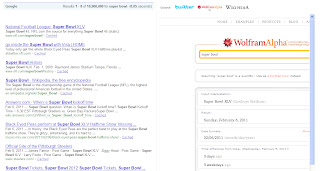
And the Wikipedia Results

Of course, if you look hard at all the results, there is some good and there is some not so good. But isn't that the case with all search results, no matter the engine. What I think is the benefit is having all four different types of results on one page, especially the live search results from Twitter, the data results from WolframAlpha and the related results from Wikipedia. I really do think this allows for more deeper information that students can use for researching topics.
But the basic search engine is not all that Heapr has to offer. Looking for images? Heapr Images will return Google Image and Flickr results side by side. (For me the only downside is not being able to sort by license.)
Looking for video? Head over to the Heapr Video page and and you can do simultaneous searches on Youtube, Vimeo and Hulu.
Pretty basic in terms of search. But pretty neat in terms of results. And the ability to search multiple sites in one click is a big time saver for me. So head over to Heapr and get your search on!
Basically Heapr is a quad search engine. With one search you get results for 4 different searches all on one screen. While built using Google search you also get returned results from Wikipeda related searches, WolframAlpha search and Twitter instant results.
So I just did a basic search for "Super Bowl" since it was the most watched program in the history of television over the weekend.

Here is the result from WolframAlpha

And the Wikipedia Results

Of course, if you look hard at all the results, there is some good and there is some not so good. But isn't that the case with all search results, no matter the engine. What I think is the benefit is having all four different types of results on one page, especially the live search results from Twitter, the data results from WolframAlpha and the related results from Wikipedia. I really do think this allows for more deeper information that students can use for researching topics.
But the basic search engine is not all that Heapr has to offer. Looking for images? Heapr Images will return Google Image and Flickr results side by side. (For me the only downside is not being able to sort by license.)
Looking for video? Head over to the Heapr Video page and and you can do simultaneous searches on Youtube, Vimeo and Hulu.
Pretty basic in terms of search. But pretty neat in terms of results. And the ability to search multiple sites in one click is a big time saver for me. So head over to Heapr and get your search on!
Wednesday, September 29, 2010
Your Search Has Never Been Sweeter...
Most times when kids are giving an assignment the first place they go is Google which can lead them to sites in their quest for information that might not be what we as educators want them to have or, again, could be just plain wrong.
Enter Sweet Search.
When students enter a search term into Sweet Search you know they results they are going to get have been vetted by an educator or librarian for their relativity and content. Results from trusted sources like the Library of Congress, universities and PBS appear higher in the search results.
When results are returned there aren't tens of thousands of results. What is returned is the 20 best sites for the term, again, all evaluated and ranked for their relevance and content. One of the neatest features is the ability to send search results right to Google Docs so if your students have accounts or you have Apps for Ed that is very handy. But there is also the ability to bookmark the results so students can come back later on. There are some really great widgets for your website also so kids can go to one location like a homework page on your website for easy access.
But Sweet Search isn't the only resource here. Sweet Search 4 Me is a search engine for early elementary students. Sweet Search 2 Day is a nifty site where kids can learn something new everyday. Sweet Search Biography has 1000+ bios of significant persons in history. And there are tons more sites and applications to check out.

FindingDulcinea has a Facebook page and a Twitter feed with lots of great information too. Be sure to subscribe to their blog for regular updates.
So as the school year is starting, be sure to check out Sweet Search and FindingDulcinea. Two of my favorite and "must use" websites this year!
Monday, June 21, 2010
Updated Google Internet Searching

So here’s an example – I did a search for “Gulf of Mexico oil spill” and got about 27,000 results. My choices were listed under Everything and Any Time. It was easy to filter the search in Google by the categories and by the time frame posted. Photos and videos could easily be viewed in threes or all at one time. This would be a great tool for teachers and students to be able to select the type of media to view information and the time posted to either see the progressive history of a story or to read the most current posting.
To compare I did a search for “Gulf of Mexico oil spill" in Yahoo and I got 143,000,000 results that could be filtered by news source, photos, video or Twitter. The photos could be viewed three at a time using the scroll arrow or viewed by pages. Last I did the same search in Bing receiving 13,000 results. The results could be filtered by News About, Images Of, Related Searches or Search History. Bing brought up all images on one page which took some time to load. But the images could be filtered by size, layout, color, style, and people. The one feature I really liked in Bing was the ability to mouse over each video thumbnail to preview the video.
So depending on your needs each search engine offers choices for teachers and students.
To read the article from eSchoolnews go to:
http://www.nxtbook.com/nxtbooks/eschoolmedia/ecampus_201006/#/50
Image from Google Internet Search
Wednesday, January 20, 2010
Resource Gathering: Revisited
How are you looking for, and organizing your resources? Are you going to Google, Digg, Diigo, Delicious, or other products. Why not try another resource that will pull in from all of these sites to bring you all the resources at once. Try Thought Ark to perform your searches to gather in information from all of your sources. Once you have completed your searches you can then take the results an create your citations and apply to your research and projects.
Some of the features that are available from Thought Ark are:
Developed by a team comprised of students from Purdue University's TLT department along with Dr. Sonrin Matei, Thought Ark is an open source "free" utility to allows you to determine bibliographic resources through a collaborative space that also gives you the ability to identify resources you search for and those of others whose searches are similar and provide you the opportunity to utilize their results.
Now some unfortunate news, even though you can go directly to the site and use it just like any other search engine, you have to create a login to store your search results and to use some of the advanced features of the site. Once you create your login, I would suggest making it something that you are use to, then you have the ability to save and share resources, as well as to create Classes and Papers that you post onto the site.
Some of the features that are available from Thought Ark are:
- Store and share collection of saved bibliographic searches.
- Value resources based on usage
- Paper writing and citing interface
- Paper publishing
- Comments on resources and published papers
Developed by a team comprised of students from Purdue University's TLT department along with Dr. Sonrin Matei, Thought Ark is an open source "free" utility to allows you to determine bibliographic resources through a collaborative space that also gives you the ability to identify resources you search for and those of others whose searches are similar and provide you the opportunity to utilize their results.
Now some unfortunate news, even though you can go directly to the site and use it just like any other search engine, you have to create a login to store your search results and to use some of the advanced features of the site. Once you create your login, I would suggest making it something that you are use to, then you have the ability to save and share resources, as well as to create Classes and Papers that you post onto the site.
Thursday, June 4, 2009
The Wonder Wheel Experience
When it comes to browsers and search engines, I’m always looking for some new element—something that will add to the experience. The Google Wonder Wheel won’t replace my traditional search process, but it has an interesting visual way to organize the results from a search. And the Wonder Wheel can help make connections to a topic or narrow a search for a broad term.
Enter a search term and when the results are displayed select “show options."


Wonder Wheel will appear as one the options on the left-hand side of the screen.

Enter a search term and when the results are displayed select “show options."
Wonder Wheel will appear as one the options on the left-hand side of the screen.
Your selected results will appear with your original search term in the center with related terms in a connected web circling the term. Click on any of the related topics and a new web is created. Links to the terms in the web are located on the right.


You can see that the Wheel is easy to use and is a great way to show connections between related search terms.
Sunday, May 24, 2009
WolframAlpha
WolframAlpha was just recently released, and it's taken me a little while to get my head around this. The description on the site reads "computational knowledge engine," and it looks like an amazing step towards having a website yield answers rather than search results. So instead of entering a search term, you enter data or a question, and WA attempts to compute and answer the question. Here are the details from my test drive.

Type "winston salem" (below) and WolframAlpha quickly delivers data about Winston-Salem. 

Type in "winston salem weather"(above), and you'll receive an amazing amount of information about the current weather and how it compares to the data readings from past Winston-Salem weather.
Try plugging in your height and weight, and WA will give you data about BMI, basal metabolic rate, body fluids and typical organ properties.
Finally, type in a question and WolframAlpha will try to answer it. If your query doesn't include enough information, you'll get "Alpha isn't sure what to do with your input."
However, you might be surprised what WA will answer (see below).
So WolframAlpha is great at delivering a wealth of data on a subject or answering a question with amazing speed. This could be a huge step in the ways we (and students) interact with technology. And it's even friendly. . . sort of.
Wednesday, March 25, 2009
Monday, January 5, 2009
KartOO Search Engine
 While looking for different search engines to use, I found one called KartOO. Not really sure about the way it is pronounced, maybe "kar - too" like a sneeze or maybe "kart - oh". It was developed in France and can be searched for websites, images, videos, and Wikipedia content. KartOO is a free, cartographic search engine that retrieves results from numerous other engines, such as Yahoo, AltaVista, Hotbot (and the list goes on) and then shows them in a visual, interactive map using Flash.
You can choose which language you want to see the results in and the words and menus are specific to each country. The left-side column shows the initial search in categories. Then as you move the mouse cursor across the result pages, keywords are highlighted and a brief description appears on the left side of the screen. A separate window opens when you click one of the pages. Gold lines link the subjects and sites. Clicking on one of the Topics in the left column takes you to more interactive maps.
There is a filtering system, bit it is very weak. Some words would give the message that if you were under 18, please do not go on into the site instead of blocking it. Our District filter caught most of the "usual" searches, but unfortunately some others came on through. I wasn't able to create my own custom search engine like I do in Google so only specific sites can be searched.
A first time user may not find KartOO very user friendly. The graphics aren't displayed in any type of organization, just kind of thrown around on the page. Options for saving and printing the maps are two very usable features.
If you have found a search engine you would like to recommend, please leave us a comment.
Friday, November 21, 2008
What Do You Search For?
While working with teachers in netTrekker, we are always “searching” for information that goes along with the curriculum. Millions of students work at their computers and are typing keywords into the different search engines available to them. I, along with the teachers, are eternally hopeful they are searching for information that will help them with their schoolwork. Since we can’t keep up with every word they search, we can guide them to a safe search engine and get an idea of the top keyword searches through a new index launched by Thinkronize (http://www.thinkronize.com/).
 Thinkronize is the developer of NetTrekker and compiles the data from all K-12 student searches within the NetTrekker search engine. An index of the most active student search terms is compiled and released at www.nettrekker.com quarterly. The population of student searches includes over 20,000 schools and 11 million students within the 50 states using NetTrekker. This index helps us teachers understand what our students are questioning, learning about and wanting to know more about.
 The top-searched word in NetTrekker was “games.” Children will be children and do searches for what they are interested in the most and by using the features of NetTrekker, we can incorporate their interests into what they are studying. Below is a listing of the top 15 keyword searches from the spring quarter index which includes “animals,” “weather,” and “plants.”


 Thinkronize is the developer of NetTrekker and compiles the data from all K-12 student searches within the NetTrekker search engine. An index of the most active student search terms is compiled and released at www.nettrekker.com quarterly. The population of student searches includes over 20,000 schools and 11 million students within the 50 states using NetTrekker. This index helps us teachers understand what our students are questioning, learning about and wanting to know more about.
 The top-searched word in NetTrekker was “games.” Children will be children and do searches for what they are interested in the most and by using the features of NetTrekker, we can incorporate their interests into what they are studying. Below is a listing of the top 15 keyword searches from the spring quarter index which includes “animals,” “weather,” and “plants.”
Although other search engines provide lists of the most popular keyword searches, Thinkronize’s NetTrekker puts a different spin on the results. According to the CEO Randy Wilhelm, their report shows “a real-time, school-based mirror of what our children are searching for – both for academic purposes and out of genuine curiosity.”
Subscribe to:
Posts (Atom)